Getting started
The main window
A tour of the tab bar, chart area, side panel and right rail.
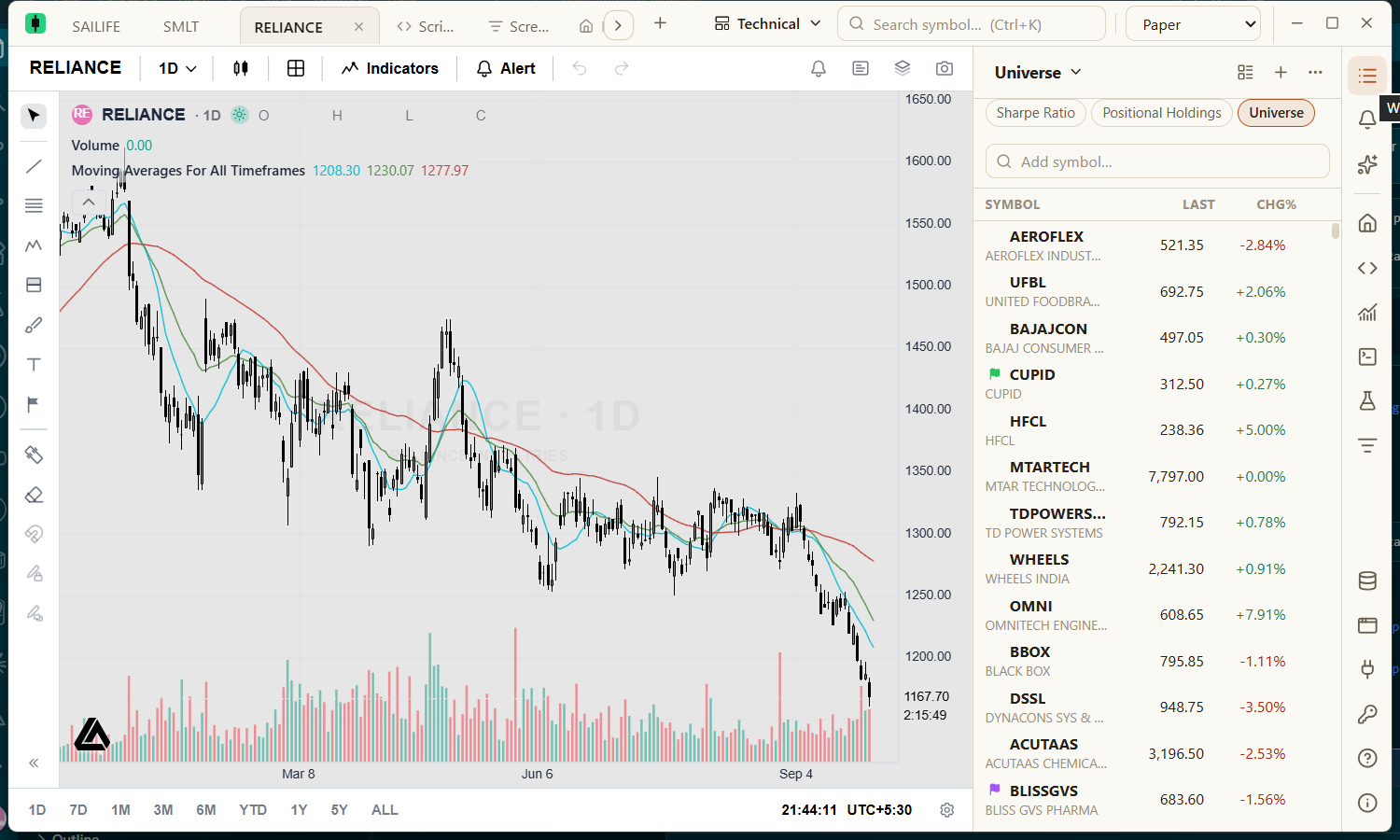
| Area | What it holds |
|---|---|
| Tab bar (top) | The window's title bar and tabs in one. One tab per chart showing its symbol, live price and the day's change; the Python, Studies, Screener, Script Editor and Home workspaces when open; and the + button for a new tab. Drag the empty space to move the window. |
| Tab bar actions (top right) | The Layout menu, the symbol search box, the theme selector and the window controls. |
| Chart area (centre) | One chart, or a grid of up to sixteen, with the chart's toolbar for timeframe, chart type, indicators and drawing tools. |
| Side panel (right) | The watchlist, the price alerts list or Ask AI — one at a time. |
| Right rail (far right) | Icons that switch the side panel and open the tools described below. |
The right rail
| Icon | What it does |
|---|---|
| Watchlist | Shows or hides the watchlist panel (Alt+W). |
| Price alerts | Shows your alerts. A badge counts alerts that fired since you last looked. |
| Ask AI | Opens the AI assistant. |
| Home (house) | Opens the Home tab. |
| Script Editor | Opens the Pine Script editor (Ctrl+E). |
| Strategy Tester | Shows or hides a strategy's backtest under the chart (Ctrl+Shift+E). |
| Python | Opens the Python workspace (Ctrl+Shift+Y). |
| Studies | Opens the Studies workspace. |
| Screener | Opens the Screener. |
| Import data (database) | Chart your own data from a CSV file. |
| New window | Opens another window (Ctrl+Shift+N). |
| Data providers (plug) | Where prices come from. |
| AI providers (key) | API keys for Claude or GPT. |
| Help | The in-app Help Center (F1). |
| About (info) | Version, licence, your data folder and shortcuts. A dot means an update is ready. |
Clicking the icon of the panel that is showing folds it away so the chart gets the full width. To resize the side panel, drag its left edge; double-click the edge to reset it. Both are remembered.
The Home tab
Click the Home icon to open a launchpad that links to everything in the app. It starts with a Zerodha row showing how long today's login has left, then new chart tabs and windows, your saved layouts, watchlists, research tools, setup tasks (marked Done or Pending), a Market data section to keep the market loaded, load it now or stop, and theme, shortcuts, updates, About and Help. Every card does exactly what its button elsewhere does.